Figma 스타일 Infinite canvas 구현하기
2026년 3월 10일html canvas를 통해 피그마 스타일의 Infinite canvas 구현하기
현재 구상하고 있는 사이드 프로젝트에서 Figma와 같은 영역이 끝없이 확장되고 pan 및 zoom 기능이 필요하기 때문에 이에 대해서 자료를 서칭 중이다. 찾을 수 있는 소스에서는 대부분 Canvas api를 사용한다고 하는데 여기에 대해서 알아보려 한다.
최근 SI에서 Nextjs 첫 프로젝트 반성 및 후기 프로젝트를 진행하며 eraser.io에 큰 도움을 받았다. 로그인부터 결제까지, 복잡한 금융 관련 로직을 변경사항을 고려해 바꾸면서도 기존의 기능은 유지하는 형태로 개발했기 때문에 그냥 ppt 형태의 기획서로는 수많은 엣지 케이스들을 놓치는 일이 많았을 것이라고 생각한다.
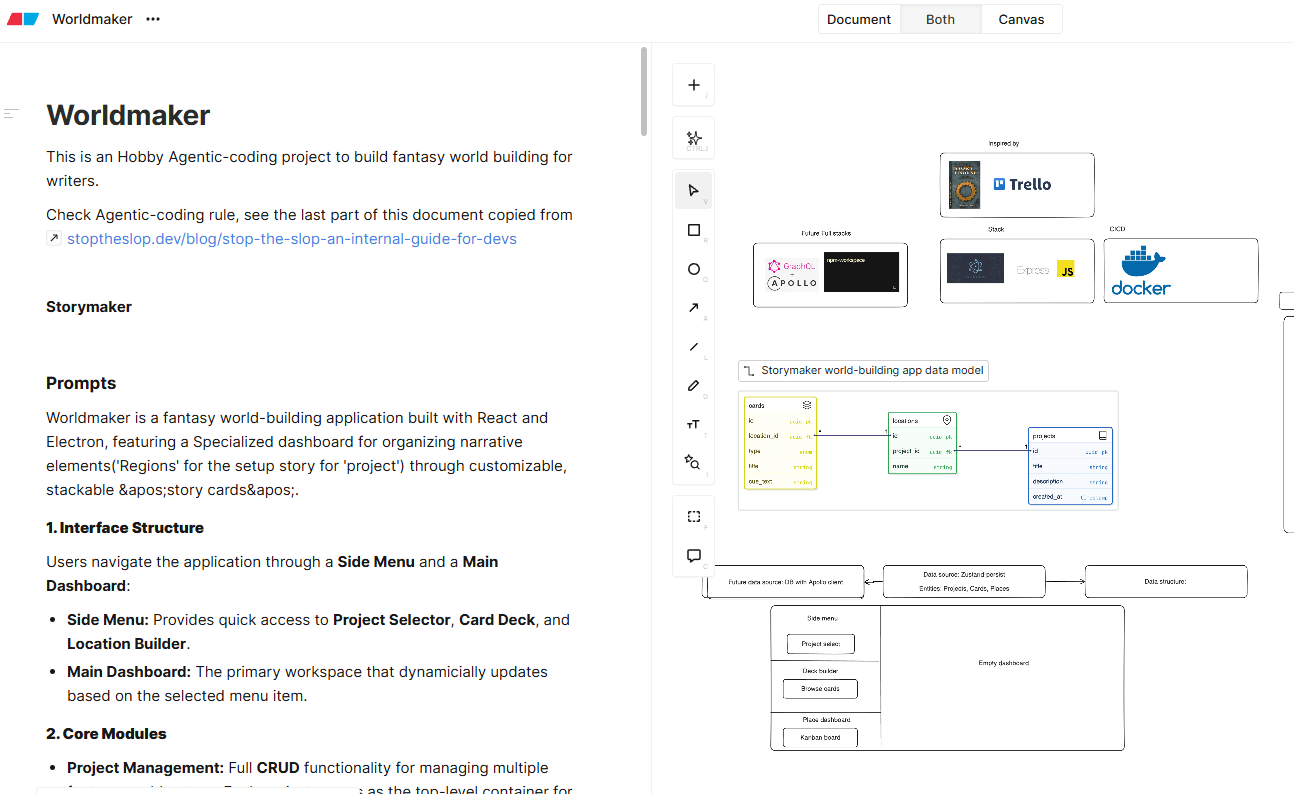
그리고 문득 궁금증이 들었다. eraser.io나 figma와 같은 툴들은 어떻게 이런 다이어그램을 그리는 기능을 제공하는 걸까?
답은 html 캔버스였다.
왜 캔버스로 구현해야 하나?
웹 개발자로서 인터랙티브한 다이어그램을 만드려면 dnd-kit과 같은 라이브러리를 먼저 생각하게 된다. dnd-kit를 이용해서 다이어그램 오브젝트를 리액트로 구현할 수는 없는걸까?
답은 리액트의 가상 돔을 사용해서 모든 오브젝트를 캔버스처럼 다루는 경우 돔의 업데이트가 빈번해져서 퍼포먼스상으로 문제가 생기기 때문이었다.
Concept - Immediate mode와 Retained mode
medium-피그마 스타일 캔버스에서는 Immediate mode와 Retained mode에 대해 설명하고 있다.
Immediate mode에서 화면(여기서는 오브젝트 모델과 렌더하는 primitive 단위를 얘기함)은 그래픽 라이브러리의 메모리가 아니라 클라이언트에 존재한다. 따라서 Canvas와 같은 Immediate 모드의 앱에서 렌더링해야 할 Primitives들은 클라이언트의 책임이 된다.
개념적인 부분은 따로 정리했다 - 개념
리액트로 치환해서 말한다면 리액트가 모든 렌더링을 담당하지 않게 하는 것을 말한다. 웹 워커로 멈추지 않는 시계 만들기에서 offscreencanvas를 사용한 것 참고 리액트는 모든 html요소를 객체의 형태로 가상 DOM의 구조로 저장하고 State의 변경에 따라 필요한 만큼의 자식을 rerender한다. 만약 이 공식 그대로 캔버스를 그리게 된다면 가상 DOM의 변경사항이 필연적으로 과도하게 자주 일어날 것이기 때문에 퍼포먼스 상 치명적일 수 있다.
이전에 React Native 환경에서 15만개 정도의 데이터 포인트를 리액트 레이어에서 구현할 수 없어 skia 그래픽 엔진을 도입한 React-native-Echarts로 구현한 바 있다. 그렇다면 실제로 만들어보도록 한다.
Goal - 기본적인 HTML Infinite Canvas 코드베이스 구현하기
infinite canvas tutorial git 의 표현에 따르면 영역이 끝없이 확장되고 pan 및 zoom 기능을 Infinite canvas라고 부른다.
확장성: 유저는 컨텐츠를 자유롭게 CRUD 할 수 있다. 줌: 확대 및 축소가 자유롭다. 자유로운 수정: 유저는 여러가지 도형들을 사용할 수 있고 움직이거나 그루핑 등의 액션을 할 수 있다.
Implementation - React에서 실제로 그려보기
infinitecanvas tutorial 에서 제시하는 단계에 따라 진행하였다.
1. rendering loop
Static한 이미지라면 rerender가 필요하지 않겠지만 여기서는 pan과 zoom을 통해 rerender가 일어나기 때문에 Rendering loop를 구현했다.
...
export function useCanvas(){
...
  const render = useCallback(() => {
    const canvas = canvasRef.current;
    if (!canvas) return;
    const ctx = canvas.getContext('2d');
    if (!ctx) return;
    const { width, height } = canvas;
    // Buffer 시작
    // Canvas 전체 초기화
    ctx.fillStyle = '#1a1a2e';
    ctx.fillRect(0, 0, width, height);
    ctx.beginPath();
    ctx.moveTo(30, 50);
    ctx.lineTo(150, 100);
    ctx.stroke(); // MDN의 선 그리기 코드

    // draw anything
    animationFrameRef.current = requestAnimationFrame(render);
  }, [drawGrid]);

  useEffect(() => {
    // RAF 호출 주기는 모니터 주사율과 같음 60fps.
    animationFrameRef.current = requestAnimationFrame(render);
    return () => {
      if (animationFrameRef.current !== null) {
        cancelAnimationFrame(animationFrameRef.current);
      }
    };
  }, [render]);
  return [canvasRef];

}
'use client';
...
export const CanvasView = () => {
const [canvasRef] = useInfiniteCanvas();
return (
<div className="relative w-full h-full overflow-hidden">
<canvas
tabIndex={0} // focus 이벤트를 수신하기 위한
ref={canvasRef}
className="block w-full h-full outline-0 cursor-default"
/>
</div>
);
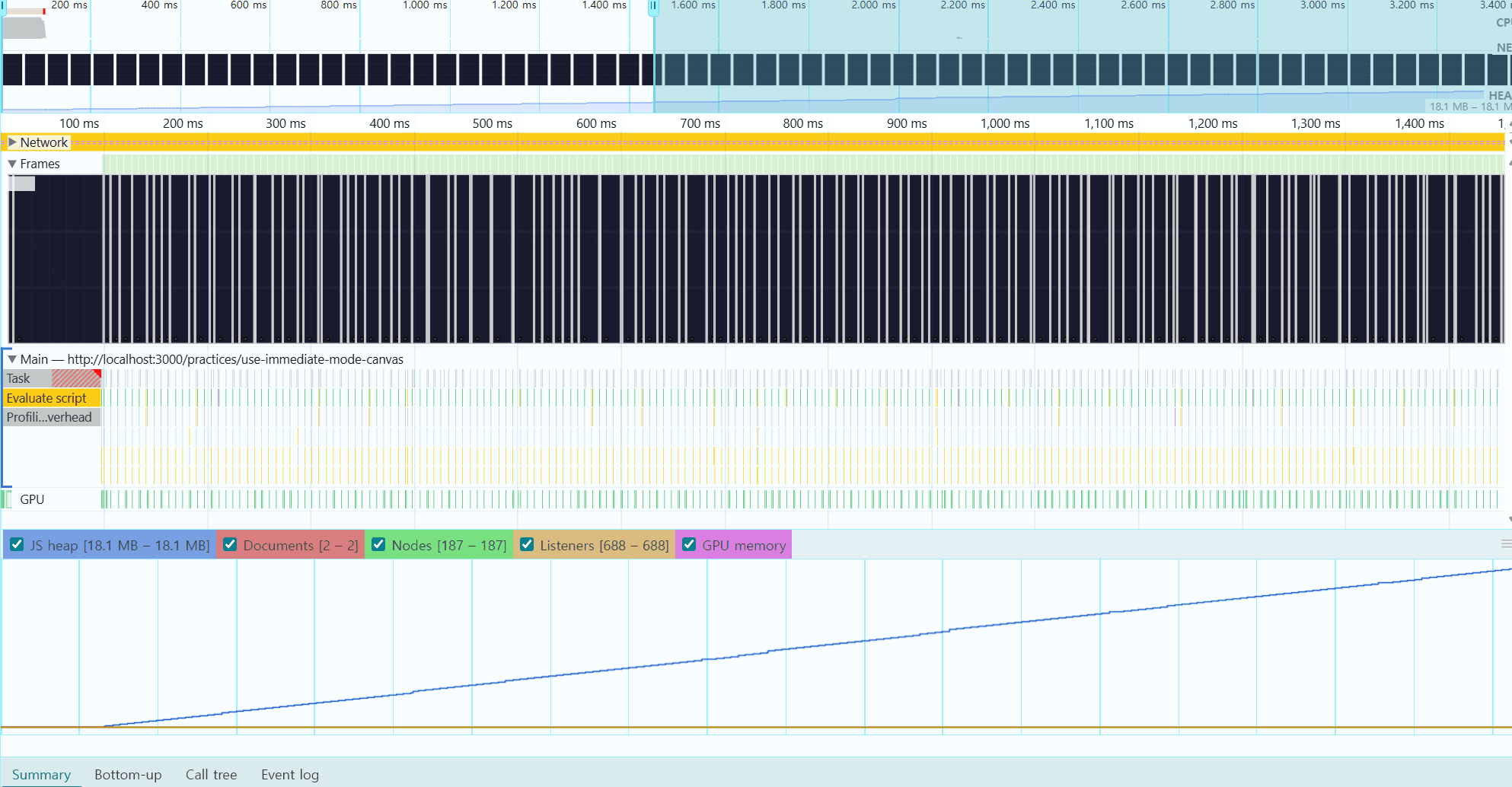
};위 코드로 멈춰있는 것처럼 보이지만 크롬의 퍼포먼스 탭으로 확인해 본다면 위 useEffect를 실행한 쪽은 프레임에 맞춘 rerender가 일어나 하지 않은 쪽과 확연히 다른 것을 알 수 있다.
2. Shape 추가하기
카메라가 작동하는 것을 보려면 캔버스에 무언가 그려져 있어야 한다.
canvas cheetsheet을 보고 정사각형을 추가한 뒤 카메라를 구현하려 한다.
...
const useCanvas = () => {
  const canvasRef = useRef<HTMLCanvasElement | null>(null);
  const animationFrameRef = useRef<number | null>(null);
  const { drawRectangle, drawBlocks } = useShapes();

  const handleResize = useCallback(() => {
    const canvas = canvasRef.current;
    if (!canvas) return;
    const rect = canvas.getBoundingClientRect();
    // TODO: scale 줌인 줌아웃
    const dpr = window.devicePixelRatio || 1;
    canvas.width = rect.width * dpr;
    canvas.height = rect.height * dpr;
    canvas.style.width = `${rect.width}px`;
    canvas.style.height = `${rect.height}px`;
    const ctx = canvas.getContext('2d');
    if (ctx) {
      ctx.scale(dpr, dpr);
    }
  }, []);

  const render = useCallback(() => {
    const canvas = canvasRef.current;
    if (!canvas) return;
    const ctx = canvas.getContext('2d');
    if (!ctx) return;
    // Buffer 시작
    // Canvas 전체 초기화
    ctx.fillStyle = '#1a1a2e';
    ctx.fillRect(0, 0, canvas.width, canvas.height);
    // draw anything
    drawRectangle(ctx, 0, 0, 100, 100);
    drawBlocks(ctx);
    animationFrameRef.current = requestAnimationFrame(render);
  }, [drawRectangle, drawBlocks]);


  useEffect(() => {
    // 모니터 가로세로비와 canvas의 크기를 맞춤
    const canvas = canvasRef.current;
    if (canvas) {
    // Resize observer
    const resizeObserver = new ResizeObserver(handleResize);
    const container = canvas.parentElement;
    if (container) {
      resizeObserver.observe(container);
    }
      handleResize();
      render();
    }
  }, [render, handleResize]);
  return { canvasRef };
};

export default useCanvas;
3. Camera / Pan 기능
pan을 추가하기 위해선 css transform과 Coordinate system 에 대한 이해가 필요하다.
CSS
transform속성으로 요소에 회전, 크기 조절, 기울이기, 이동 효과를 부여할 수 있습니다.transform은 CSS 시각적 서식 모델의 좌표 공간을 변경합니다.
Transform의 3d를 제외한 모든 메소드는 matrix(a, b, c, d, tx, ty)의 변형이다. 따라서 pan에 사용되는 메소드는 이론 상 ctx.setTransform()으로 해결할 수 있다.
Camera란 무엇인가?
카메라란, 2차원 캔버스의 전역 좌표를 바라보는 유저의 시야를 말한다. 이를 위해서는 일반적인 x,y 밸류가 아니라 카메라의 시점에서 새롭게 캔버스의 전역 좌표를 계산을 통해 로컬 좌표로 계산해야 한다.
로컬 / 전역 좌표 시스템
좌표 시스템이란 오브젝트의 포지션, 회전, 스케일링과 같은 속성을 기록한 데이터를 말한다. 여기서는 2차원 유클리드 좌표와 Center of gravity 공식을 사용한다.
Infinite canvas tutorial 에서는 이렇게 설명한다.
만약 달이 지구를 돈다고 생각해 봅시다. 이것은 지구의 로컬 좌표에서 바라보는 달이 됩니다. 만약 태양 전체의 전역 좌표에서 바라본다면 달의 공전과 자전으로 인해 복잡한 곡선이 되겠지만 달은 그것을 신경 쓸 필요가 없습니다. 오직 지구의 로컬 좌표에 맞춰서 계산하면 되기 때문입니다.
용어를 정리하는데 개념들이 다양해서 혼란이 있었지만 여기서는 레퍼런스들에서 언급하는 개념에 맞춰서 정리한다.
- Client Space
- 브라우저/스크린/다큐먼트의 왼쪽 최상단 origin
- 이벤트 리스너를 통해 받아오는 위치값
clientX, screenX등이 해당 됨
- Screen Space
- Dom에 존재하는 Canvas의 왼쪽 최상단을 origin으로 하는 좌표.
- Client Space에서
e.clientX - rect.left캔버스의getBoundingClientRect()를 빼서 스크린 스페이스 좌표로 계산함 - 컴퓨터 그래픽스 업계의 Screen과 동일한 개념! 이해 안되면 여기서 레퍼런스를 구해야 함
- World Space
- 카메라가 바라보는 무한한 평면 캔버스의 좌표
- 오브젝트의 위치는 이 좌표계 기준으로 저장되며 pan/zoom이 일어나도 변하지 않음
- pan/zoom 액션이 일어날 경우 Camera(x, y, z)가 변경되고 Screen Space와의 변환 시 새롭게 계산됨
z값은 카메라의 높이zoom 레벨 (1 = 100%, 2 = 200%, 0.5 = 50%)
이에 따라 계산법을 도출할 수가 있다.
-
카메라(Viewport)를 설정할 때
- Client Space → Screen Space → World Space
- e.clientX - rect.left 로 Screen 좌표 획득
- 스크린 좌표를 World 좌표로 변환
- pan/zoom 이벤트 발생 시 camera.x, camera.y, camera.z 값 업데이트 후 위의 방법으로 계산
-
오브젝트를 그릴 때
- World Space → Screen Space → ctx에 스크린 좌표를 통해 렌더
- 월드 좌표를 스크린 좌표로 변환
- 카메라 좌표가 적용된 ctx에 World 좌표로 렌더
- pan/zoom이 일어나도 오브젝트의 World 좌표는 변하지 않음
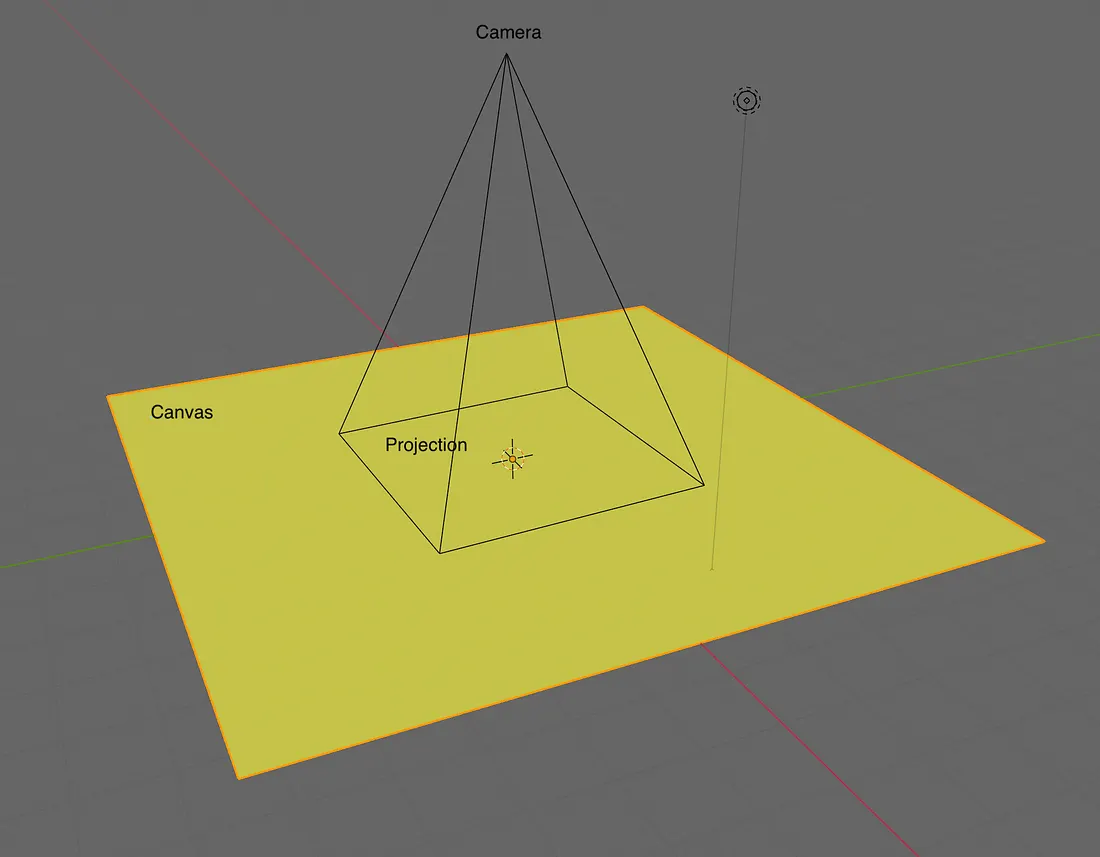
그리고 카메라 자체는 2d 캔버스의 월드 좌표를 투영하는 3차원 오브젝트가 된다. Z의 밸류가 카메라의 높이가 되는 것.
중요한 것은, 카메라는 월드 좌표, 렌더링 오브젝트는 스크린 좌표로 최종적으로 변환된다는 것이다.
여기서는 이전, 현 마우스 위치(스크린 좌표)를 캔버스 기반 위치(월드 좌표)로 변환해 차이값을 계산한다.
const initialCamera = {
  x: 0, // 시작 위치 x:0 y:0 캔버스의 중앙
  y: 0,
  z: 1, // 시작 zoom level.(카메라의 높이)
};

//
export function worldToScreen(
  worldPoint: Point, // 월드 좌표에서 원하는 위치
  camera: CameraState, // 카메라 월드 좌표
  canvasWidth: number, // 캔버스 로컬 크기
  canvasHeight: number,
): Point {
  const centerX = canvasWidth / 2; // 캔버스의 중앙점
  const centerY = canvasHeight / 2;
  return {
    x: (worldPoint.x - camera.x) * camera.z + centerX,
    y: (worldPoint.y - camera.y) * camera.z + centerY,
  };
  // (월드 전역 좌표 - 현재 카메라 위치) * 줌 레벨 + 캔버스 중앙 값
}

const useCanvas = () => {
...
  const [camera, setCameraState] = useState<CameraState>(initialCamera);
  // camera ref. useEffect와 useCallback에 포함시키지 않기 위해 펑션에서는 ref 의 밸류를 가져다 사용한다.
  const cameraRef = useRef(camera);
  cameraRef.current = camera;
...

   /**
   * Pan으로 인한 캔버스 카메라 이동.
   */
  const handleMouseMove = useCallback(
    (e: MouseEvent) => {
      const canvas = canvasRef.current;
      if (!canvas) return;
      const rect = canvas.getBoundingClientRect();
      const currentPos = {
        // 클라이언트 좌표 - 캔버스 좌표 = 스크린 스페이스 좌표
        x: e.clientX - rect.left,
        y: e.clientY - rect.top,
      };
      if (isSpacePressedRef.current && !isPanningRef.current) {
        canvas.style.cursor = 'grab';
      }
      if (isPanningRef.current) {
      // 현재 캔버스 좌표 - 이전 캔버스 좌표 = 유저가 월드 좌표에서 이동한 거리 값
        const deltaX = currentPos.x - lastMousePosRef.current.x;
        const deltaY = currentPos.y - lastMousePosRef.current.y;
        const cam = cameraRef.current;
        setCamera({
          ...cam,
          x: cam.x - deltaX / cam.z, // 월드 좌표 - 월드 거리 값 / 카메라의 z 레벨
          y: cam.y - deltaY / cam.z,
        });
        lastMousePosRef.current = currentPos;
      }
    },
    // Client Space → Screen Space → World Space
    [setCamera],
  );
 ...
  // 실제 캔버스 렌더러
  const render = useCallback(() => {
    const canvas = canvasRef.current;
    if (!canvas) return;
    const ctx = canvas.getContext('2d');
    if (!ctx) return;
    const { width, height } = canvas;
    // Clear canvas with background color
    ctx.fillStyle = '#1a1a2e'; // --color-bg-primary
    ctx.fillRect(0, 0, width, height);
    const cam = cameraRef.current;
    // 캔버스 컨텍스트 포인터(정사각형 그리기)
    ctx.save();
    // 중요: 월드 좌표가 아니라 스크린 좌표에서 계산되어야 함
    const origin = worldToScreen({ x: 0, y: 0 }, cam, width, height);
    ctx.translate(origin.x, origin.y); // 최상위
    ctx.scale(cam.z, cam.z);
    ctx.fillStyle = 'tomato';
    ctx.fillRect(-50, -50, 100, 100); // 최상위
    ctx.restore();
    //debug info
    drawDebugInfo(ctx, cameraRef.current);
    animationFrameRef.current = requestAnimationFrame(render);
  }, [drawDebugInfo]);

...
}
4. 줌 기능
다음으로는 카메라의 Z 축인 높이이다. 마우스 좌표(스크린)를 기반으로 scale이 변경된 이후와의 차이값을 구해서 camera를 업데이트 한다.
/**
 * 스크린 좌표를 월드 좌표로 변환
 */
export function screenToWorld(
  screenPoint: Point,
  camera: CameraState,
  canvasWidth: number,
  canvasHeight: number,
): Point {
  const centerX = canvasWidth / 2;
  const centerY = canvasHeight / 2;
  return {
    x: (screenPoint.x - centerX) / camera.z + camera.x,
    y: (screenPoint.y - centerY) / camera.z + camera.y,
  };
}
  ...
  /**
   * 마우스 휠 리스너
   */
  const handleWheel = useCallback(
    (e: WheelEvent) => {
      e.preventDefault();
      const canvas = canvasRef.current;
      if (!canvas) return;
      const rect = canvas.getBoundingClientRect();
      const mouseX = e.clientX - rect.left; // 클라이언트 기준 마우스 x - 캔버스 기준 시작점 = canvas 좌표 마우스 위치
      const mouseY = e.clientY - rect.top;
      const cssWidth = canvas.clientWidth;
      const cssHeight = canvas.clientHeight;
      // 로컬 좌표 -> 월드 변수
      const worldBefore = screenToWorld(
        { x: mouseX, y: mouseY },
        cameraRef.current,
        cssWidth,
        cssHeight,
      );
      // 새 스케일 계산
      const delta = -e.deltaY * ZOOM_SENSITIVITY;
      const newScale = clamp(cameraRef.current.z * (1 + delta), MIN_SCALE, MAX_SCALE);
      // 월드 카메라 좌표 새롭게 계산
      const tempCamera = { ...cameraRef.current, z: newScale };
      const worldAfter = screenToWorld(
        { x: mouseX, y: mouseY },
        tempCamera,
        cssWidth,
        cssHeight,
      );
      // 마지막 월드 카메라 좌표
      const newCamera: CameraState = {
        x: cameraRef.current.x + (worldBefore.x - worldAfter.x),
        y: cameraRef.current.y + (worldBefore.y - worldAfter.y),
        z: newScale,
      };
      setCamera(newCamera);
    },
    [setCamera],
  );
위와 같이 구현할 수 있었다.
5. Grid 그리기
마지막으로, 캔버스가 Infinite한지 확인하기 위해 피그마에서 확대하면 나오는 것 처럼 Grid 라인을 그린다.
  /**
   * 그리드 라인
   */
  const drawGrid = useCallback(
    (ctx: CanvasRenderingContext2D, currentCamera: CameraState, width: number, height: number) => {
      const canvas = canvasRef.current;
      if (!ctx || !canvas) return;
      // 중앙점 camera로부터 월드의 시작점과 끝점을 구함.
      const bounds = {
        // 카메라 x(중앙점) - (스케일 없는 캔버스 width / 2 = 왼쪽 혹은 오른쪽 너비) / 줌 레벨
        minX: currentCamera.x - width / 2 / currentCamera.z,
        maxX: currentCamera.x + width / 2 / currentCamera.z,
        minY: currentCamera.y - height / 2 / currentCamera.z,
        maxY: currentCamera.y + height / 2 / currentCamera.z,
      };
      // 그리드가 월드 절대 좌표에 고정되도록 시작점 정렬 (Snapping) - unity 예시? 필요하면 참조할것!
      const startX = Math.floor(bounds.minX / GRID_BASE_SIZE) * GRID_BASE_SIZE;
      const startY = Math.floor(bounds.minY / GRID_BASE_SIZE) * GRID_BASE_SIZE;

      ctx.beginPath();
      ctx.strokeStyle = 'yellow';
      ctx.lineWidth = 1;

      // 세로선
      for (let x = startX; x <= bounds.maxX; x += GRID_BASE_SIZE) {
        // (시작점 - 카메라 좌표 = 캔버스 상의 거리) * 카메라 줌 레벨+ (css 너비 / 2) = 맨 처음 뺐던 카메라 시야 값을 다시 더해줌
        const screenX = (x - currentCamera.x) * currentCamera.z + width / 2;
        ctx.moveTo(screenX, 0);
        ctx.lineTo(screenX, height);
      }
      // 가로선
      for (let y = startY; y <= bounds.maxY; y += GRID_BASE_SIZE) {
        const screenY = (y - currentCamera.y) * currentCamera.z + height / 2;
        ctx.moveTo(0, screenY);
        ctx.lineTo(width, screenY);
      }
      ctx.stroke();
    },
    [],

  );
...
  // 실제 캔버스 렌더러
  const render = useCallback(() => {
    const canvas = canvasRef.current;
    if (!canvas) return;
    const ctx = canvas.getContext('2d');
    if (!ctx) return;
    // [mdn](https://developer.mozilla.org/en-US/docs/Web/API/Canvas_API/Tutorial/Optimizing_canvas#scaling_for_high_resolution_displays) 에 따르면 고해상도 모니터에서는 그에 맞춰서 캔버스 자체의 스케일을 늘려 주어야만 한다!
    // canvas.width와 canvas.height는 이렇게 스케일이 된 스크린 좌표가 반영되기 때문에, 그냥 width가 아니라 clientWidth값으로 위치를 계산해야 함!
    const { clientWidth, clientHeight } = canvas;

    // 리렌더를 위한 전체 클리어
    ctx.fillStyle = '#1a1a2e'; // --color-bg-primary
    ctx.fillRect(0, 0, clientWidth, clientHeight);
    // 그리드
    drawGrid(ctx, camera, clientWidth, clientHeight);
    // 중앙 정사각형
    drawSquare(ctx, { x: 0, y: 0 }, GRID_BASE_SIZE * 4, camera, clientWidth, clientHeight);
    //debug info
    drawDebugInfo(ctx, camera);

    animationFrameRef.current = requestAnimationFrame(render);

  }, [drawDebugInfo, camera, drawGrid, drawSquare]);
이렇게 완성된 InfiniteCanvas의 코드베이스를 구현할 수 있었다.
결론
부끄럽지만 개발자로서 수학 공식에는 약한 점이 많았다. 이번 기회에 Immediate 모드를 통해 직접 좌표를 계산해보며 꽤나 보람찼다.
어떻게 더 확장시켜볼 수 있을까?
풀스택으로 만든다면 auto-save 기능을 추가해 진짜 피그마처럼 만들 수도, 그래프 자료 구조를 추가해 노드를 그리게 한다면 ERD가 될 수도 있다!